

Creator user guide
From signing up and building your profile to accepting offers, submitting content and sharing the post URL.
Please note This guide walks through the real screens using test accounts and sample data. Names, statuses and amounts on the screens are examples, not proof of any payment or advertising result. Card payment is not connected yet, so only barter campaigns run and no money changes hands.
Contents
- 01Creator overview
- 02Create a creator account
- 03Complete your profile and rate
- 04Request profile review
- 05Use the creator dashboard
- 06Review an offer
- 07Wait for booking confirmation
- 08View active deals
- 09Submit your content
- 10Respond to a revision request
- 11Submit the published URL
- 12Check the payouts page
- 13Completion and feedback
- 14Express interest in open campaigns
- 15Adjust an offered amount
- 16Follow ad disclosure rules
Creator overview
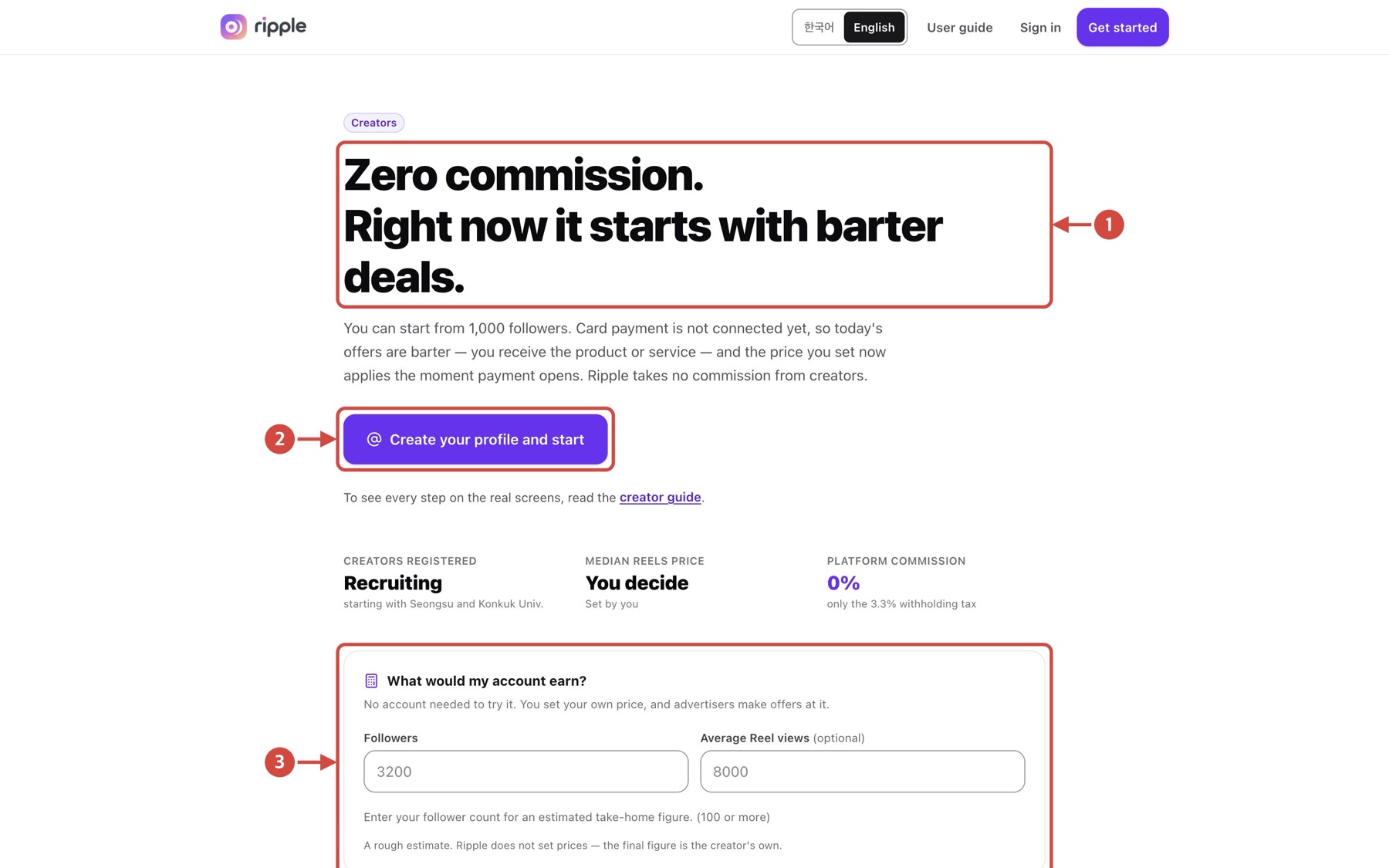
Tap the image to view it full size
- 1Read the headline: no commission, and deals currently start as barter.
- 2Select “Create your profile and start” to sign up.
- 3Under “What would my account earn?”, enter your follower count for a rough estimate.
Next You can also select “Start now” further down the page.
Back to topCreate a creator account
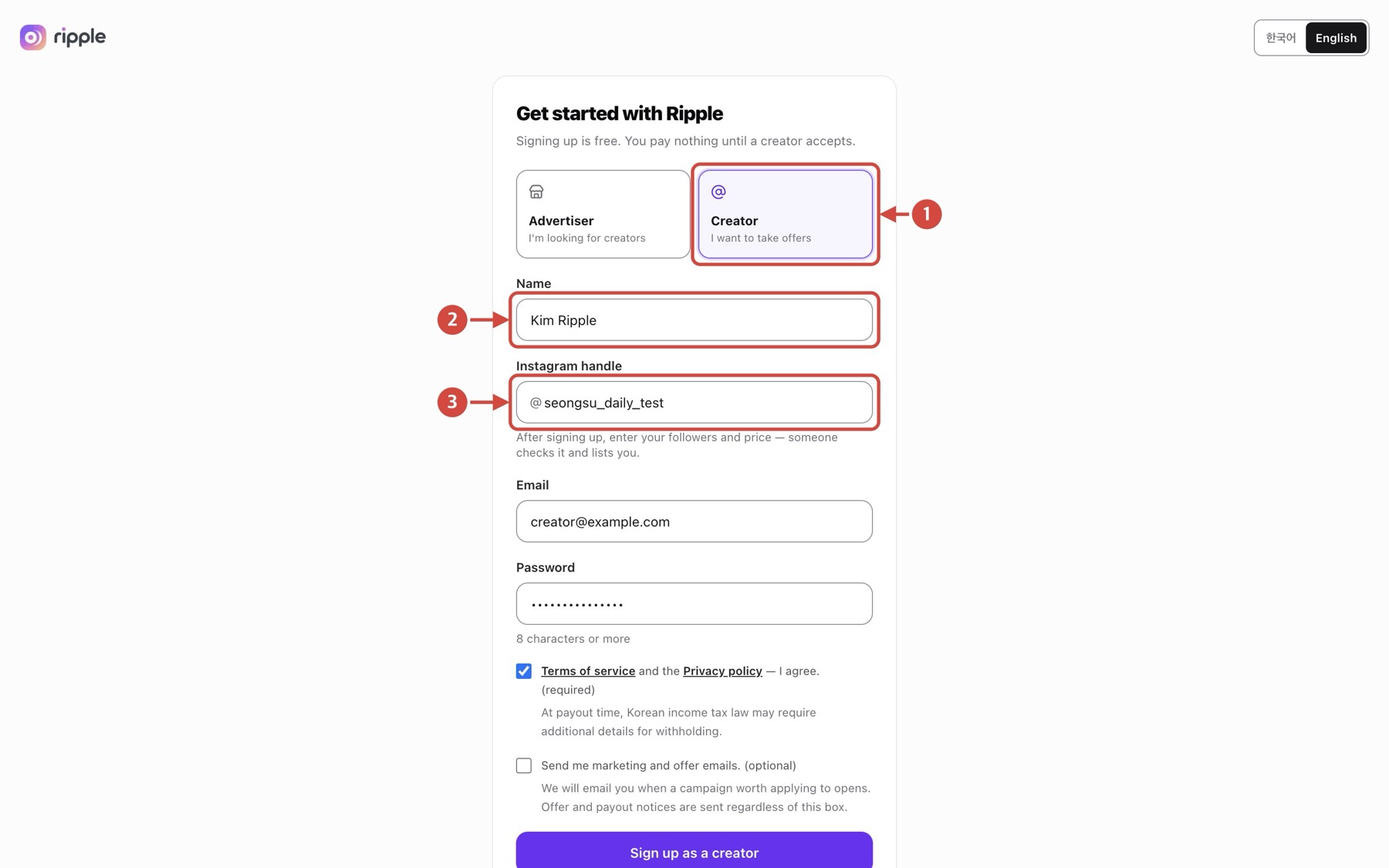
Tap the image to view it full size
- 1Select “Creator”.
- 2Enter your name.
- 3Enter your Instagram handle.
Next Enter your email and password, accept the required terms, then select “Sign up as a creator”.
Back to topComplete your profile and rate
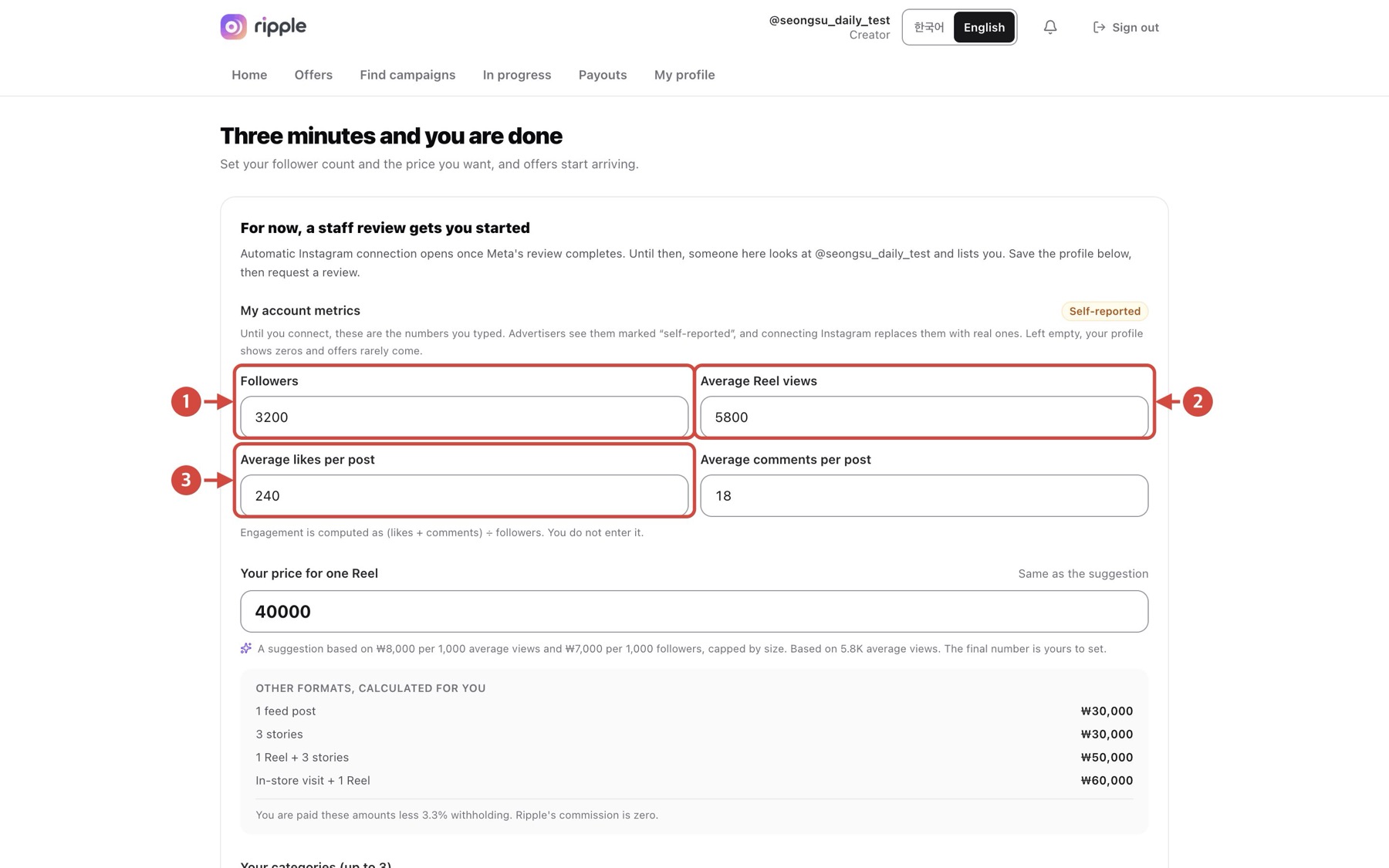
Tap the image to view it full size
- 1Enter your real follower count.
- 2Enter your average Reel views.
- 3Enter your average likes per post.
Next Also fill in average comments, your price for one Reel, categories, areas and barter preference, confirm you are 19 or older, then select “Save”. Use truthful numbers.
Back to topRequest profile review
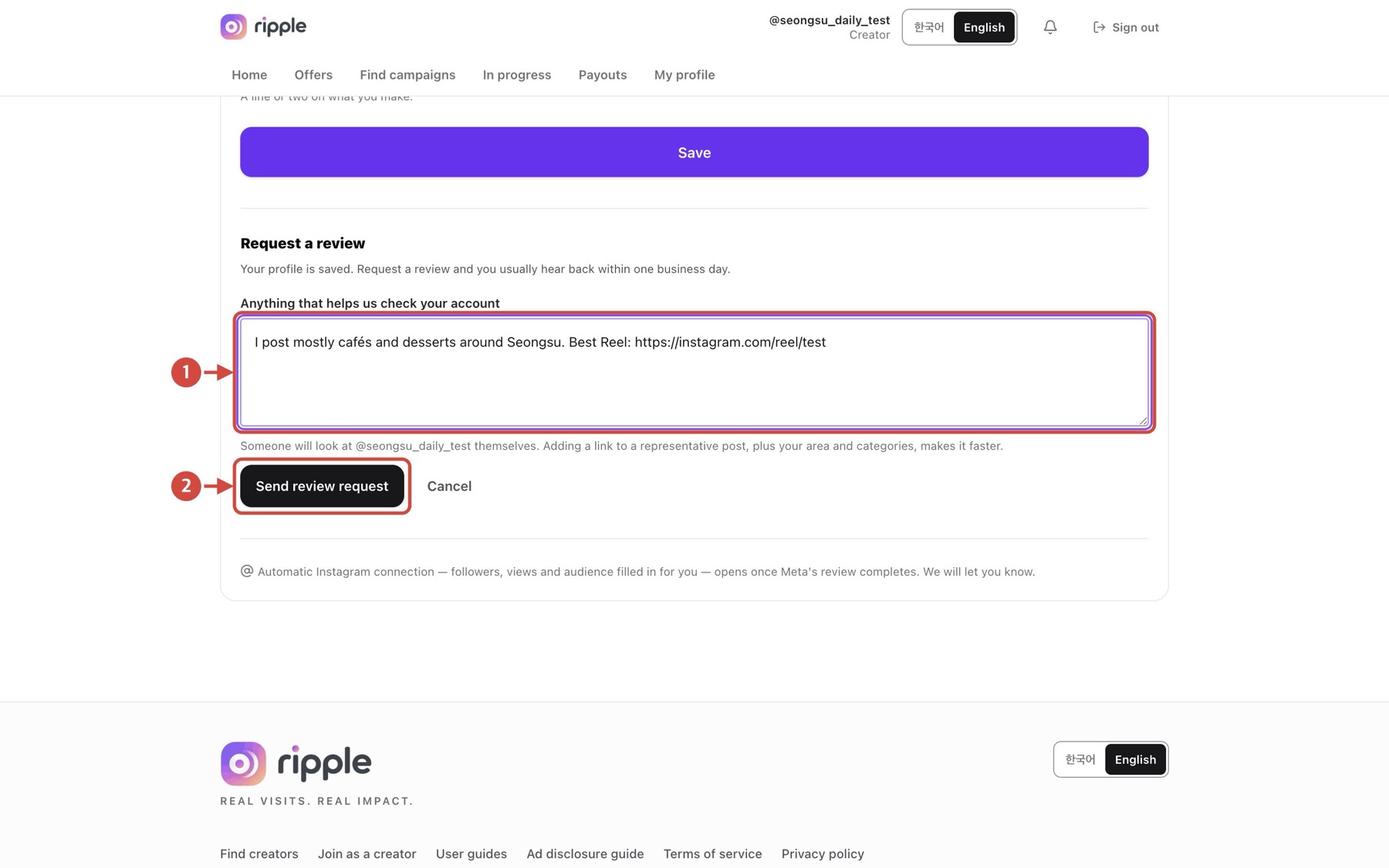
Tap the image to view it full size
- 1Describe your account and the content you make.
- 2Select “Send review request”.
Next Once staff approve the review, your profile becomes visible and offers can reach you.
Back to topUse the creator dashboard
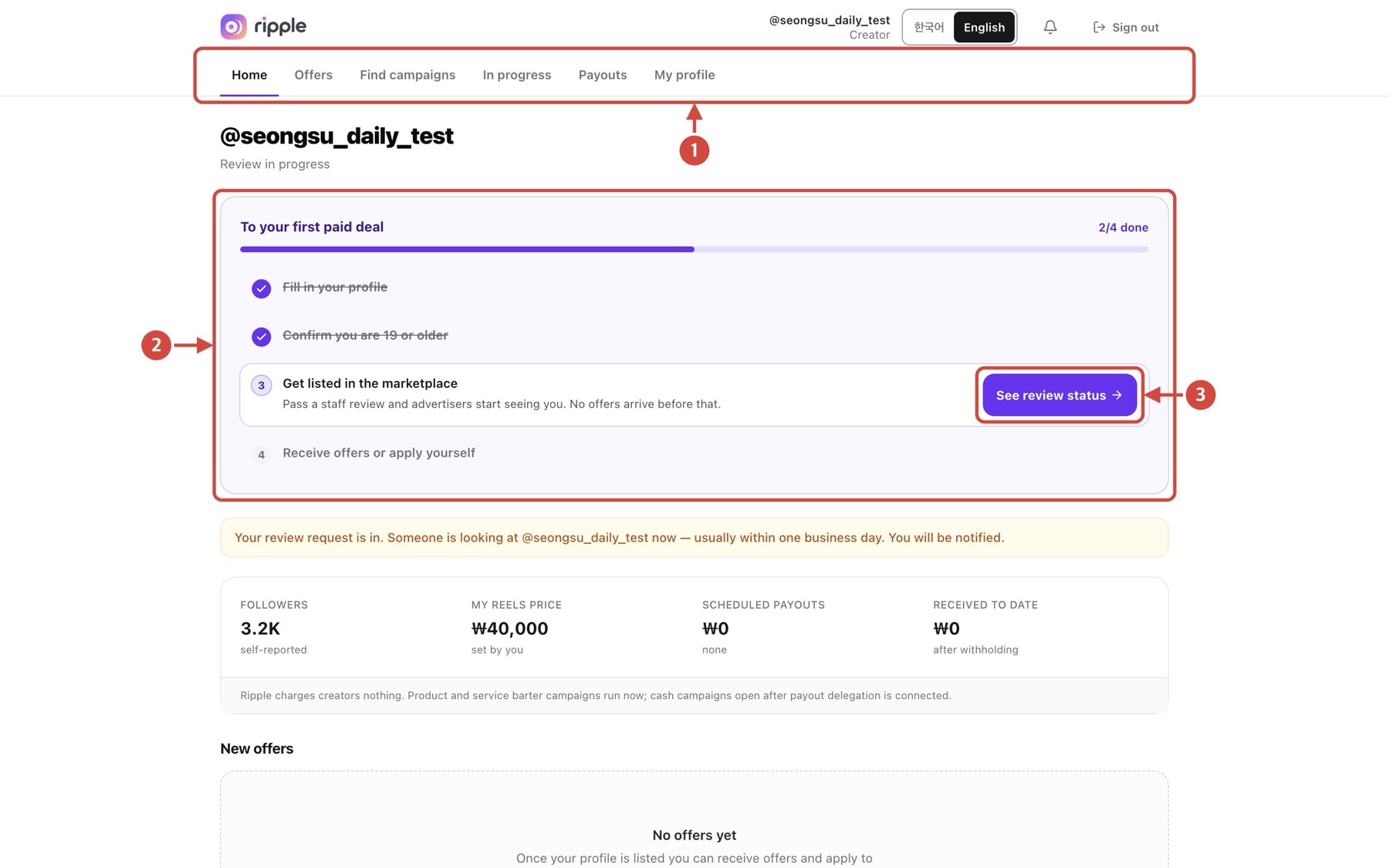
Tap the image to view it full size
- 1Find your main navigation at the top.
- 2Check the remaining steps under “To your first paid deal”.
- 3Select “See review status” to follow your review.
Next Keep your Instagram details and price up to date.
Back to topReview an offer
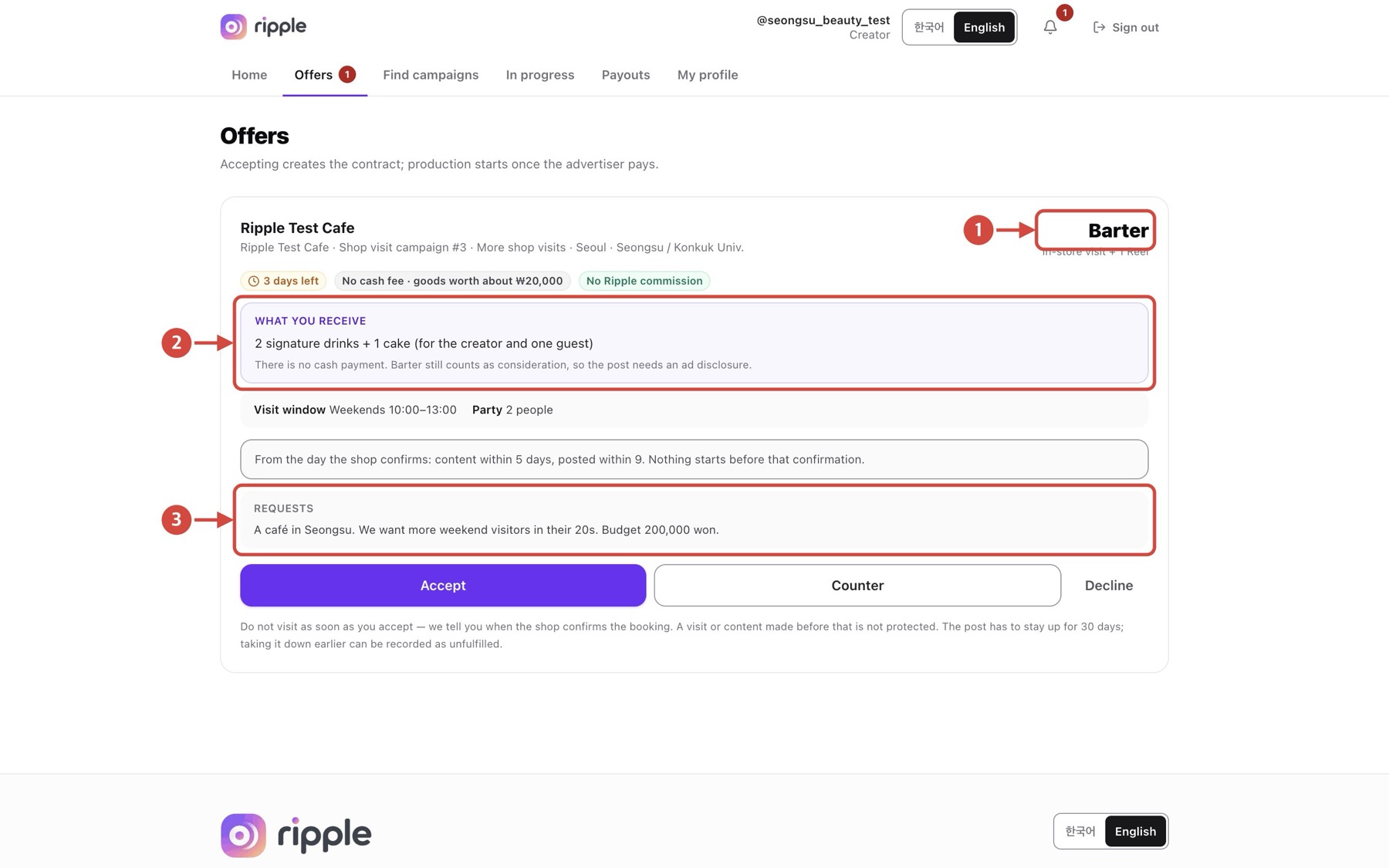
Tap the image to view it full size
- 1Check whether it is a “Barter” offer.
- 2Read “What you receive”.
- 3Read the advertiser’s “Requests”.
Next After checking the filming, posting and disclosure terms, choose “Accept”, “Counter” or “Decline”.
Back to topWait for booking confirmation
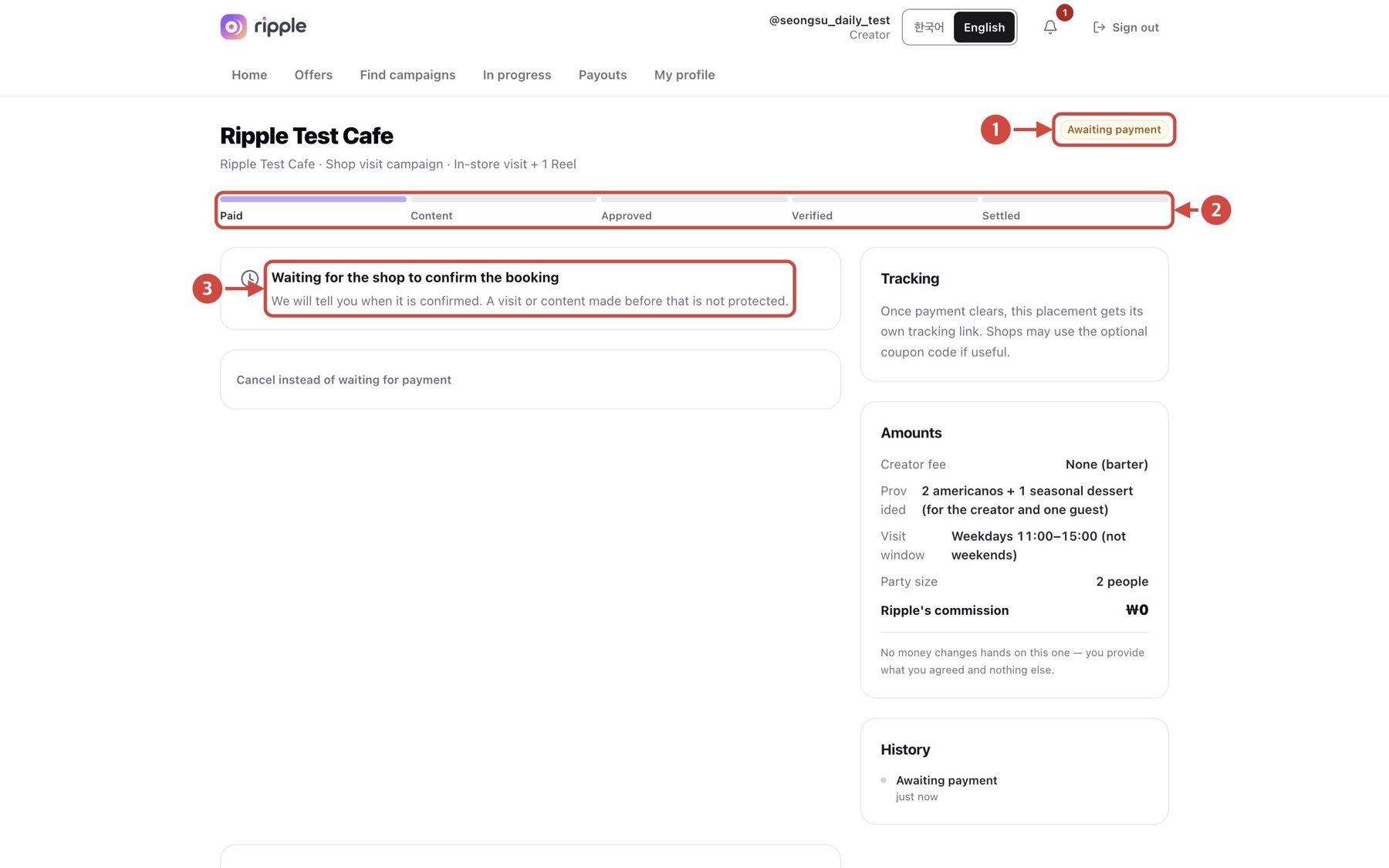
Tap the image to view it full size
- 1The contract shows “Awaiting payment”. Barter deals show this too until the shop confirms the booking.
- 2Review the progress steps.
- 3Wait for the shop to confirm the booking. Do not visit or start filming before that.
Next Use messages to agree on the visit time and preparation details.
Back to topView active deals
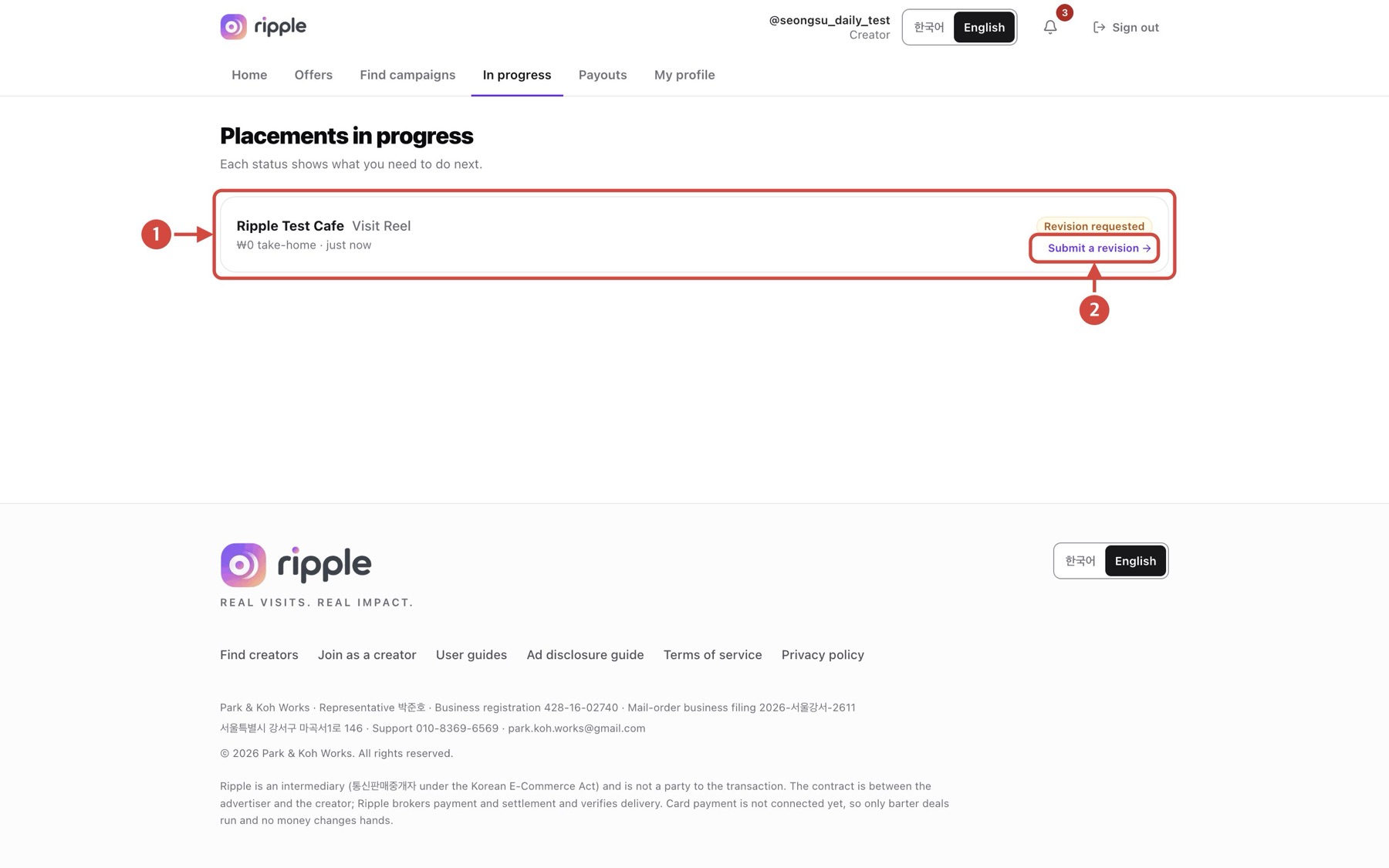
Tap the image to view it full size
- 1Open the contract from “In progress”.
- 2Check the next task shown on the card, such as submitting content or a revision.
Next After the visit and product or service delivery, open the contract to submit content.
Back to topSubmit your content
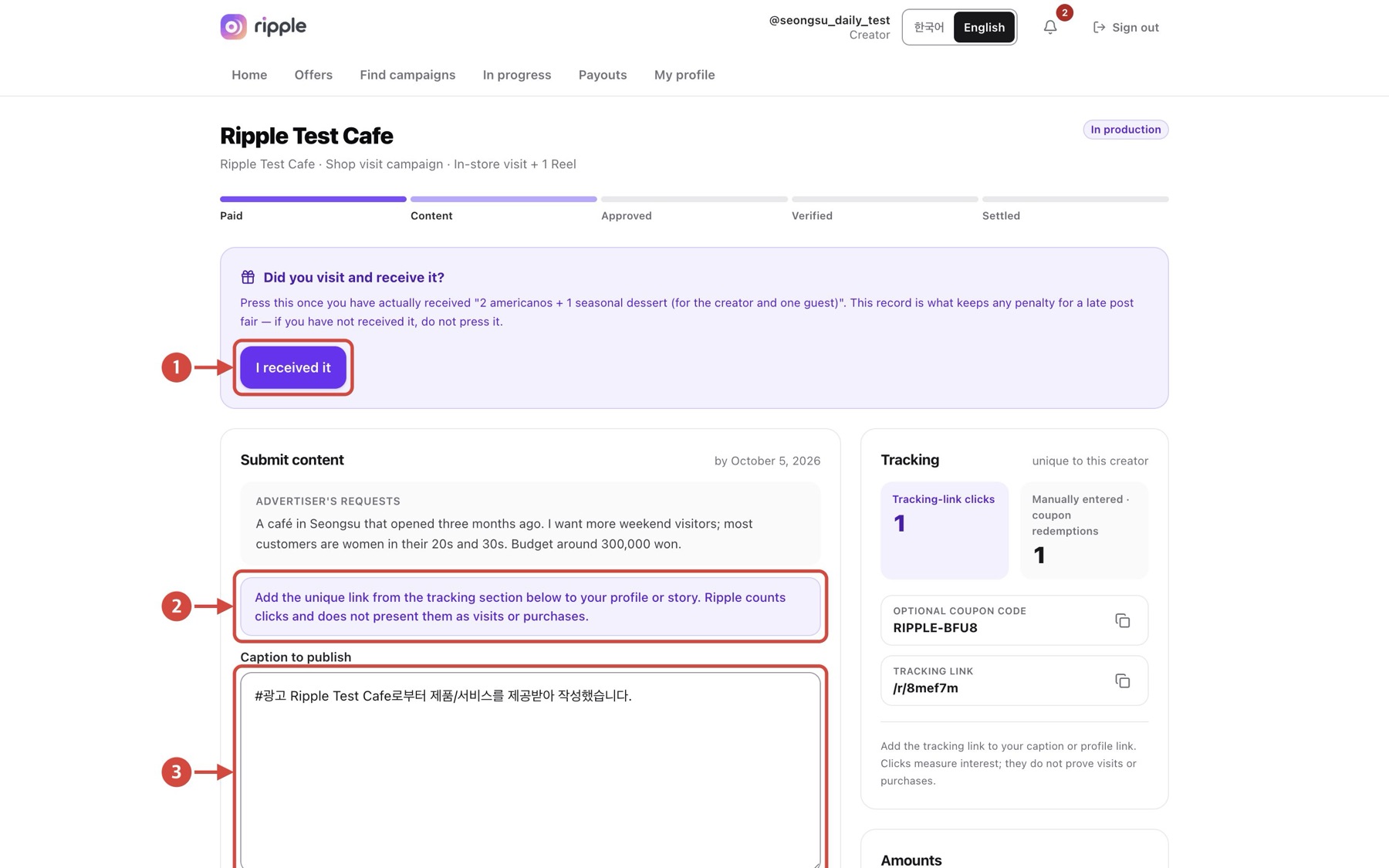
Tap the image to view it full size
- 1Select “I received it” only after you have actually received the product or service.
- 2As the notice says, add your own tracking link from the tracking section to your profile or story.
- 3Write the caption you will post. The ad label (#광고) is checked automatically.
Next Check that the disclosure check passes, then select “Submit content”. If the contract has a coupon code, the caption must include it to be accepted, so add it and resubmit if you are prompted. The advertiser reviews it before you post.
Back to topRespond to a revision request
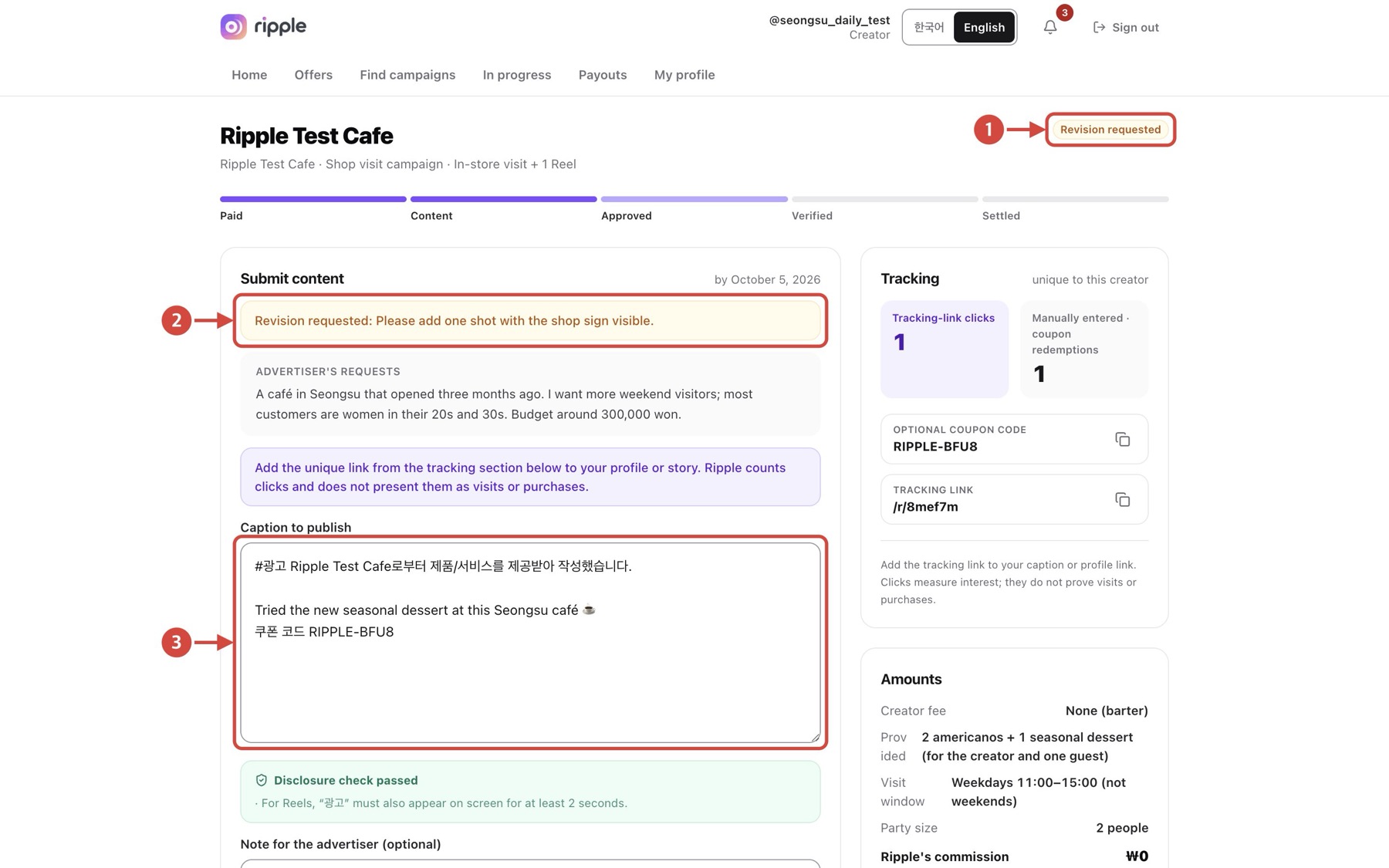
Tap the image to view it full size
- 1Confirm the contract shows “Revision requested”.
- 2Read the advertiser’s reason.
- 3Edit the caption and resubmit.
Next Update the requested shots or wording, then send it again with “Submit content”.
Back to topSubmit the published URL
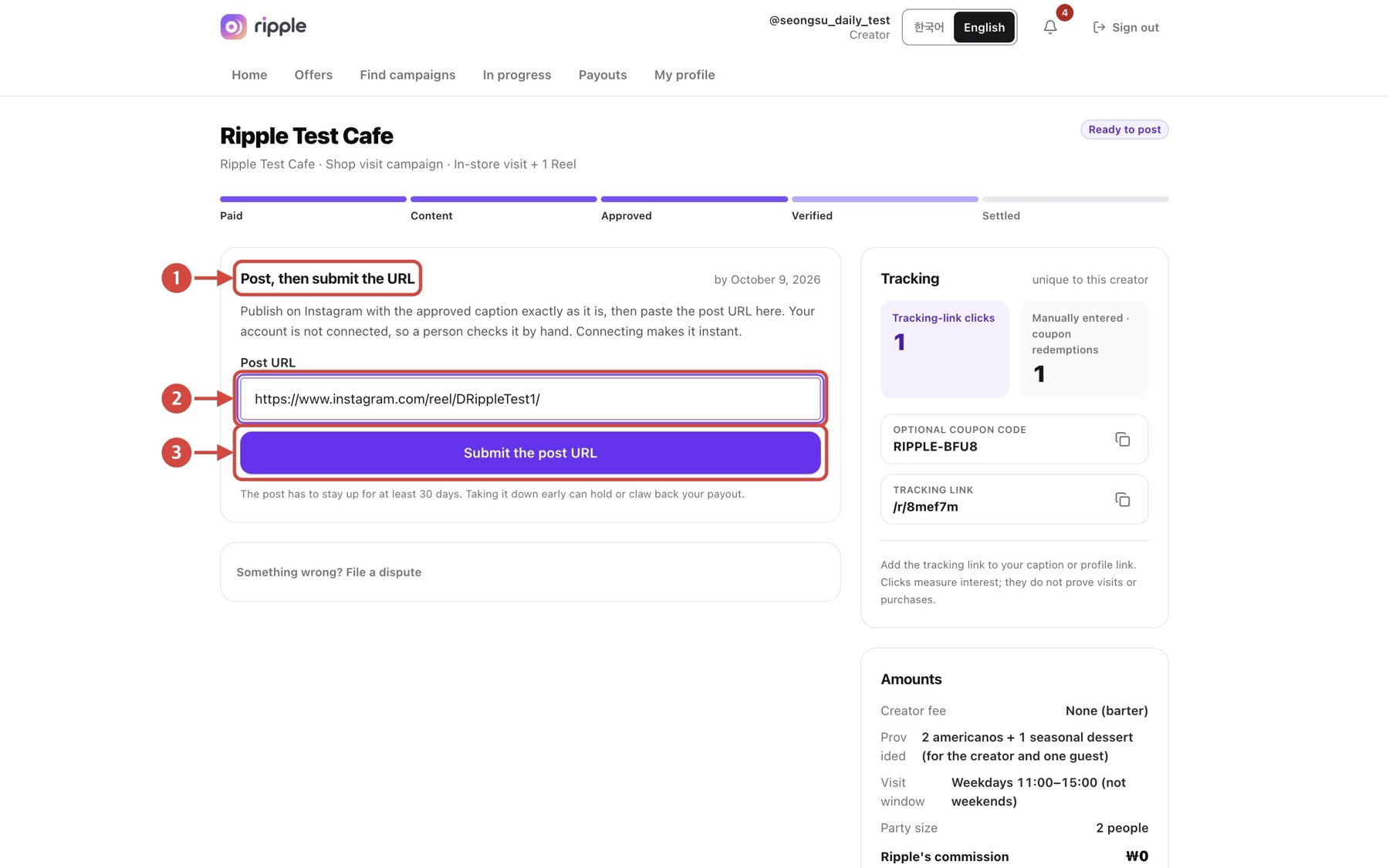
Tap the image to view it full size
- 1Once approved, post on Instagram with the approved caption, as “Post, then submit the URL” explains.
- 2Paste the public URL of the post.
- 3Select “Submit the post URL”.
Next Keep the post up for at least 30 days. Private, deleted or unreachable links cannot be verified.
Back to topCheck the payouts page
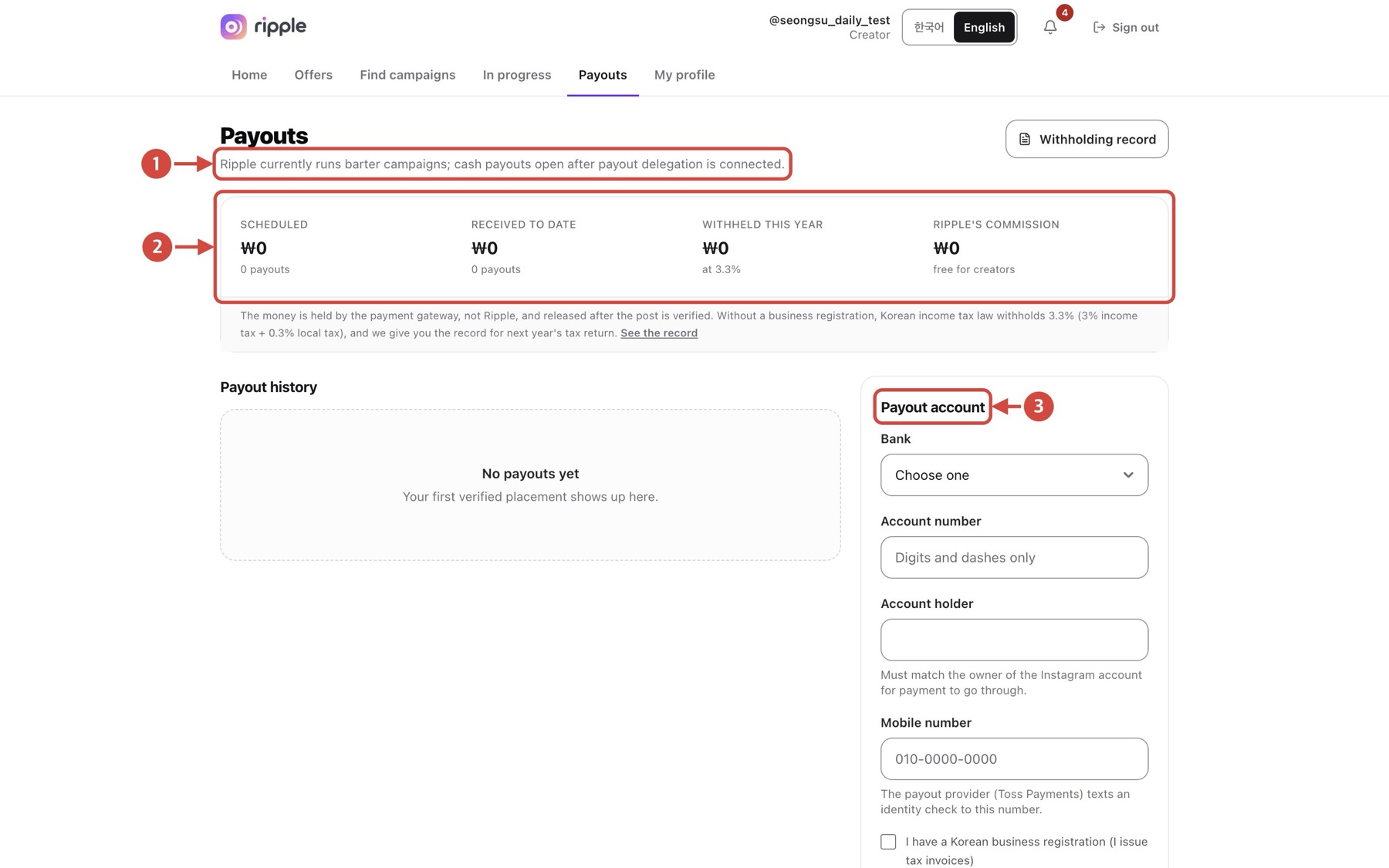
Tap the image to view it full size
- 1Read how payouts currently work in the notice at the top.
- 2Check the scheduled and received amounts.
- 3Save your payout account under “Payout account” in your own name.
Next Amounts on screen may differ from actual deposits. Barter deals pay nothing beyond the product or service provided.
Back to topCompletion and feedback
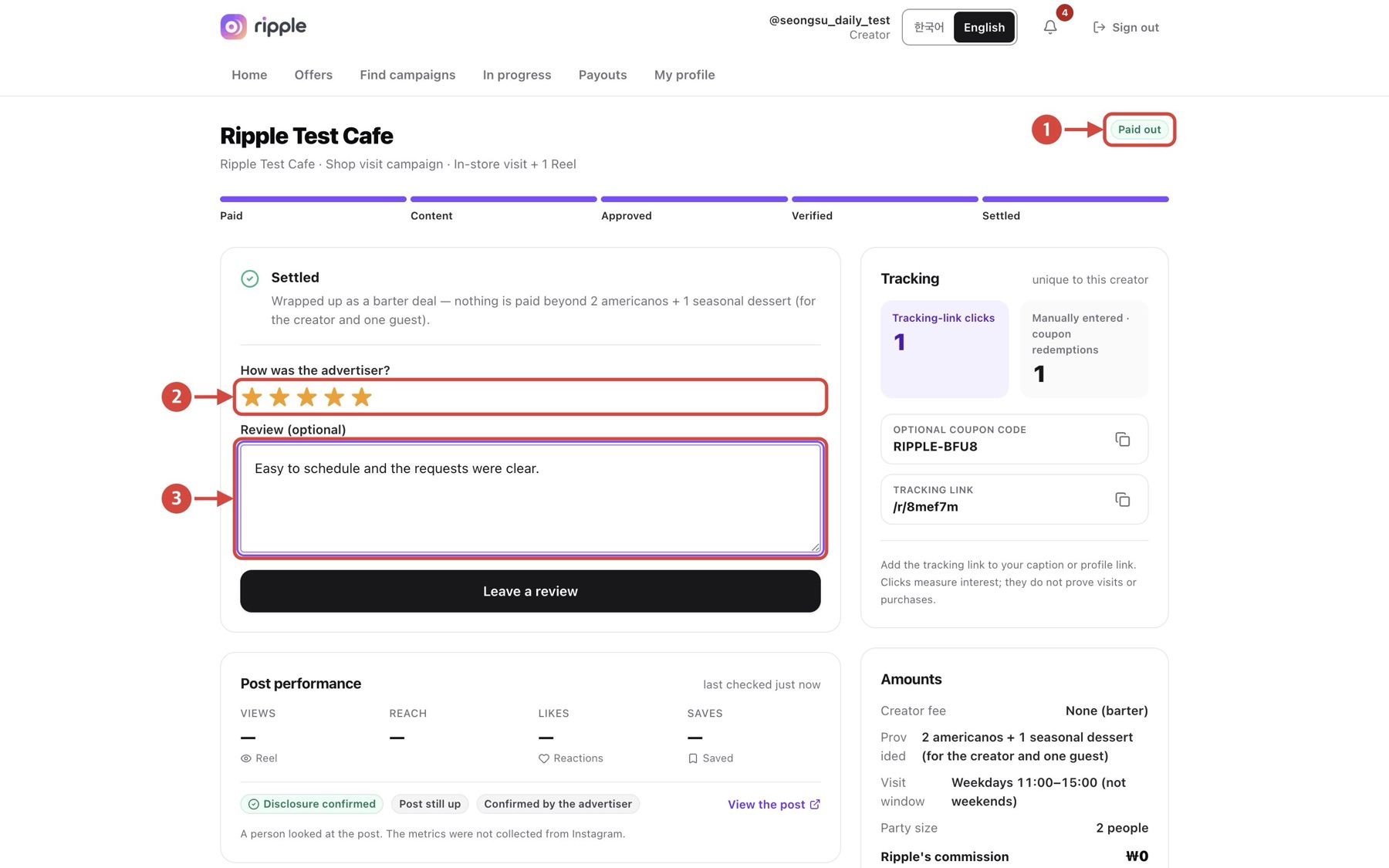
Tap the image to view it full size
- 1Confirm the contract is complete. The badge reads “Paid out”, but a barter deal pays nothing beyond the product or service provided.
- 2Select a rating for the advertiser.
- 3Write your review.
Next Select “Leave a review”. A completed status on these test screens is not proof of payment.
Back to topExpress interest in open campaigns
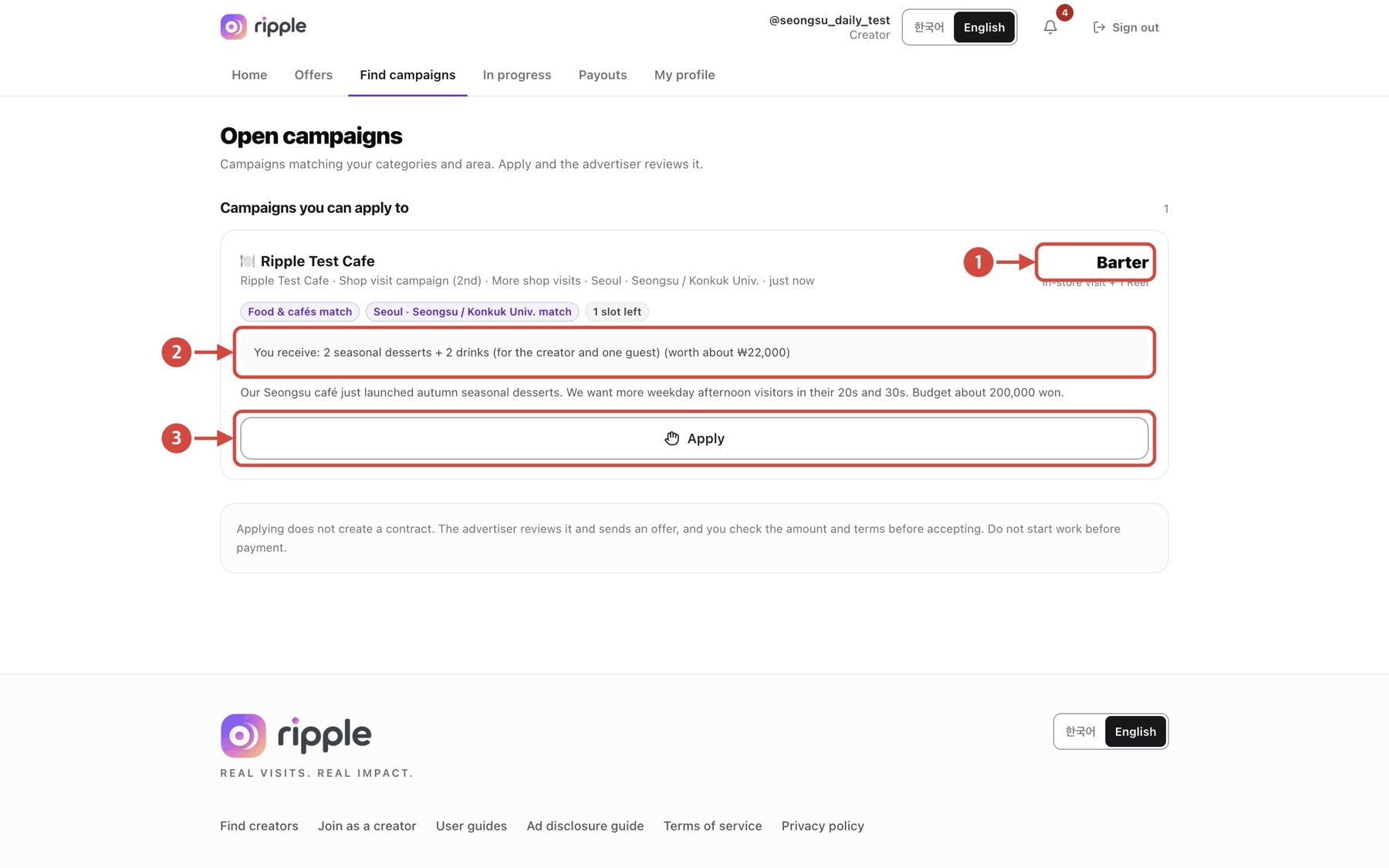
Tap the image to view it full size
- 1Check the campaign type, such as “Barter”.
- 2Read what you receive and the conditions.
- 3If interested, select “Apply”.
Next Applying does not create a contract. A contract is created only when the advertiser books you.
Back to topAdjust an offered amount
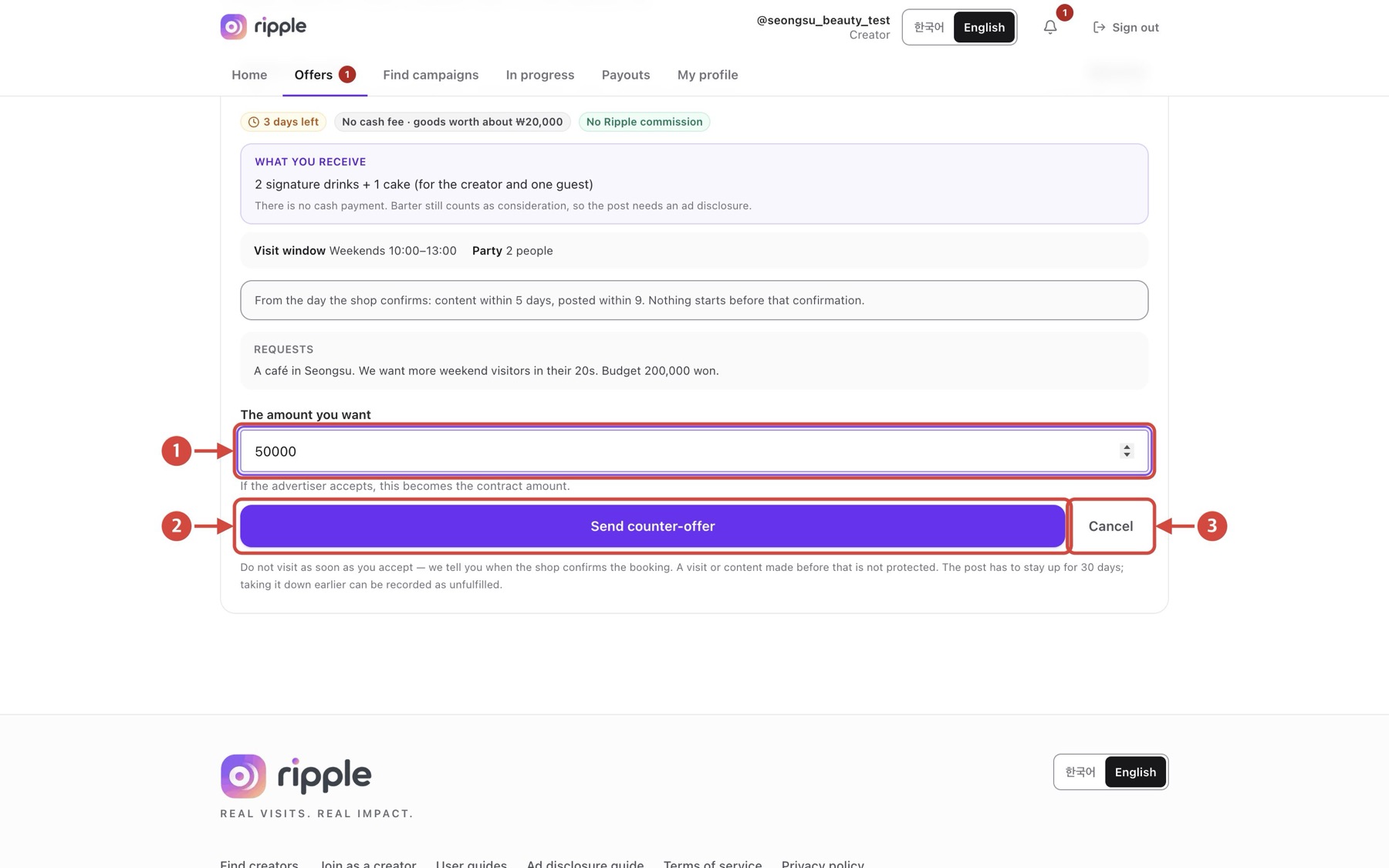
Tap the image to view it full size
- 1Enter the amount you want.
- 2Select “Send counter-offer” to send it to the advertiser.
- 3Select “Cancel” if you do not want to proceed.
Next Proposing an amount turns the barter deal into a paid-fee deal. Paid-fee deals may be limited depending on payment and payout availability, so check the on-screen notice first.
Back to topFollow ad disclosure rules
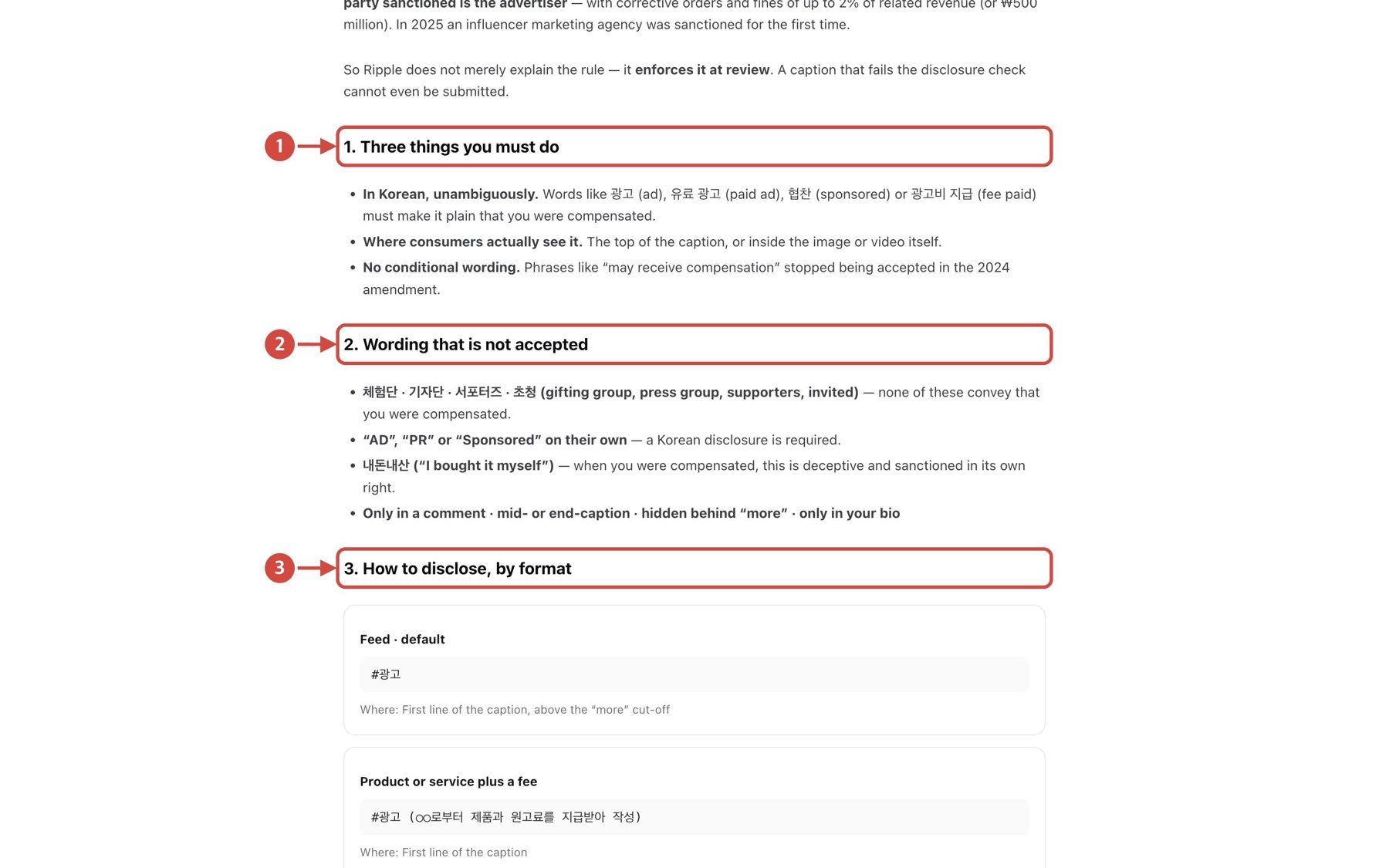
Tap the image to view it full size
- 1Read “Three things you must do”.
- 2Check “Wording that is not accepted”.
- 3See “How to disclose, by format” for where the label goes.
Next Before publishing, check the disclosure wording and placement against this guide.
Back to topReady? Start with your profile
Curious about the other side? Read the Advertiser user guide.